How to turn on Blizu notifications
Clients find out as soon as a business replies or confirms an appointment. Businesses see a new request the moment it arrives. On Android and on a computer you turn notifications on in the browser; on iPhone, once you add Blizu to your Home Screen from Safari.
Tuesday, 24 November
 BlizuExample
Appointment confirmed: Lavage
Thursday, 26 November at 10:00.
- BlizuExample
Times offered: Lavage
Pick the time that suits you.
- BlizuExample
New message: Lavage
Read the reply on the request page.
The reply to your request comes to your phone
You turn notifications on from the “My requests” page once you have sent your first request. You don’t need an account. Emails arrive without them too, if you entered your email in the request.
iPhone
On iPhone, notifications only work once Blizu is on your Home Screen. You add it from Safari, once.
Step 1: Open “My requests” in Safari and tap “Add”
The “Notifications on your phone” card says that on iPhone they only work from the Home Screen. The “Add” button is on the card below it.
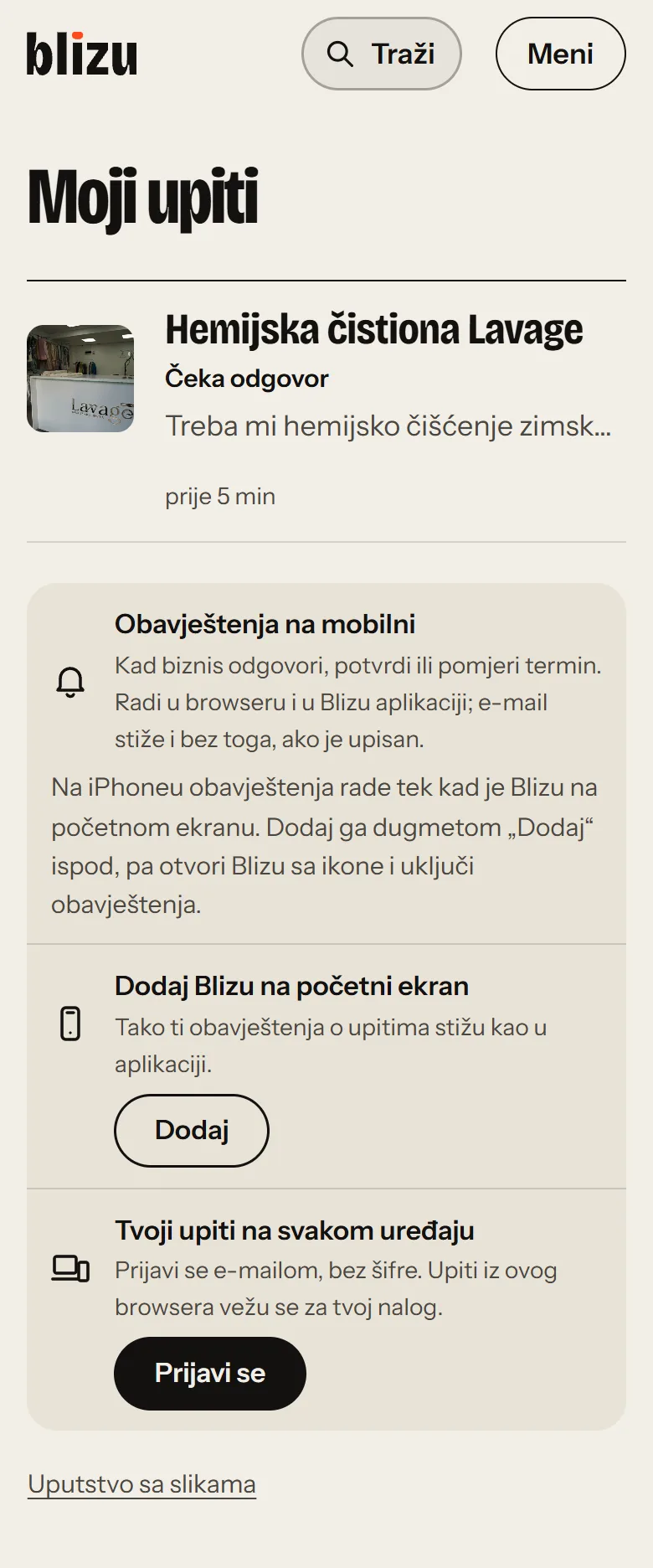
Screenshot of the Bosnian version. Tap “Add” on the lower card. Step 2: Keep the window Blizu shows you open
While it is open, the page address carries the link to your request. That way the app on your Home Screen recognises your request straight away, without signing in.
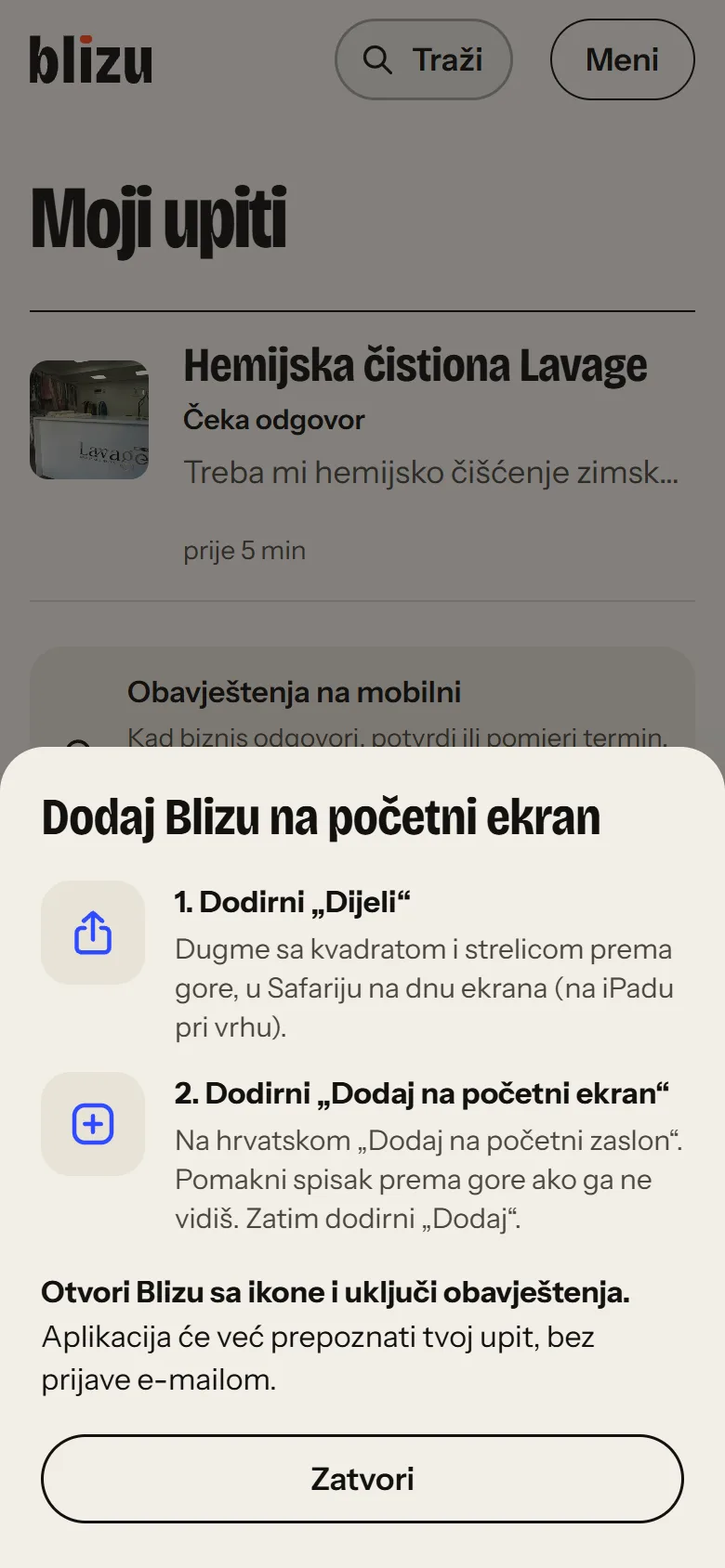
Screenshot of the Bosnian version. Leave this window open and go to the next step. Step 3: Tap “Share” in Safari
It’s the square with an arrow pointing up. On iOS 18 and earlier it’s at the bottom of the screen. On iOS 26 and later, first tap ••• next to the address, then “Share”.
iOS 18 and earlier
iOS 26 and later
Illustration Step 4: Tap “Add to Home Screen”, then “Add”
If you don’t see it, scroll the list up. If you see an option to open it as a web app (“Open as Web App”), leave it on.
Add to Home ScreenIllustration Step 5: Open Blizu from the icon and tap “Turn on”
Blizu opens on the “My requests” page. The “Notifications on your phone” card now has a “Turn on” button.
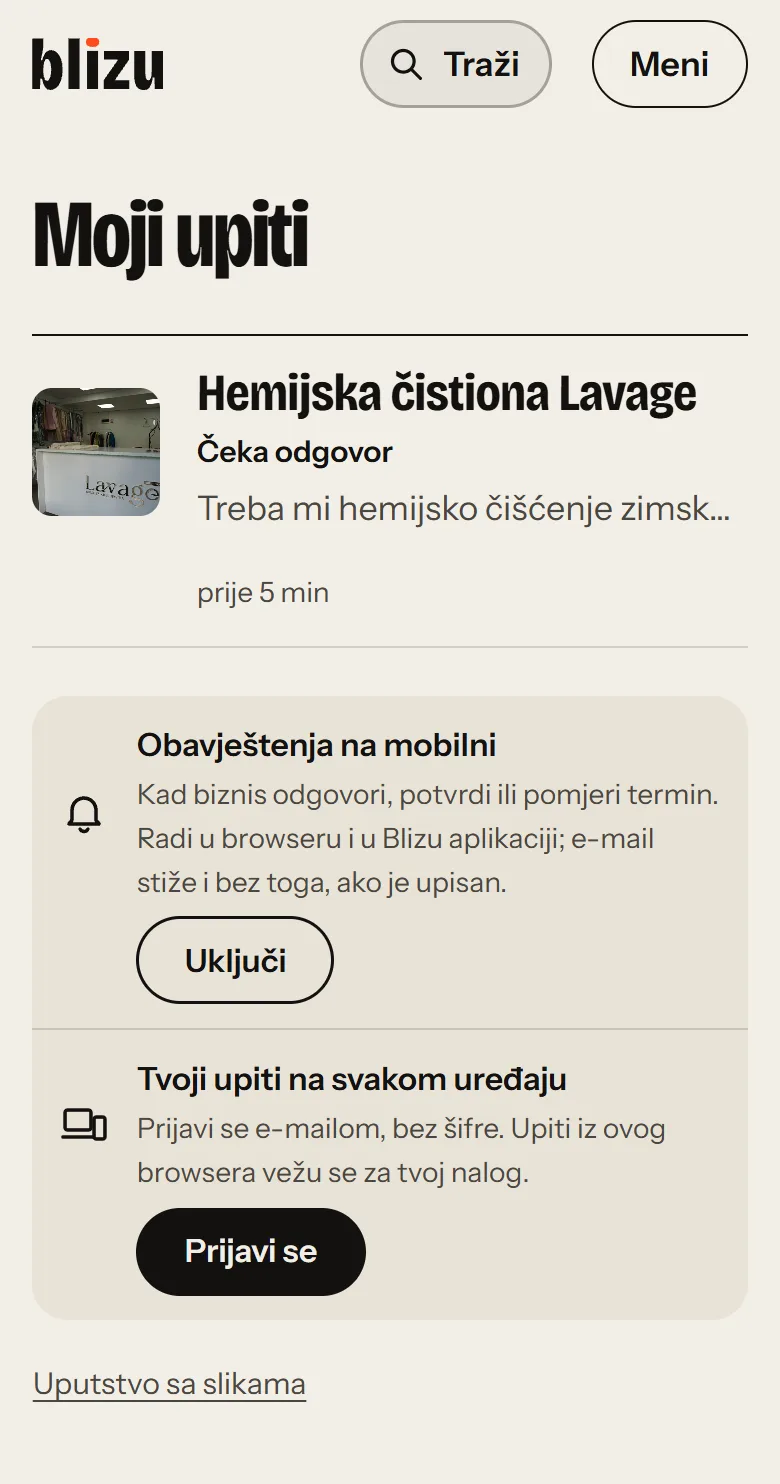
Screenshot of the Bosnian version. Tap “Turn on” on the card. Step 6: Tap “Allow”
Your iPhone asks whether Blizu may send notifications. After that, the card says they are on for this device.
“Blizu” Would Like to Send You Notifications
Don’t AllowAllowIllustration
Android
On Android, notifications work in the browser, with nothing to install. These steps are for Chrome.
Step 1: Open “My requests” and tap “Turn on”
The “Notifications on your phone” card is below your requests. It also appears right after you send a request, on the business’s profile.
Screenshot of the Bosnian version. Tap “Turn on” on the card. Step 2: Tap “Allow”
Chrome asks whether blizumene.ba may send notifications. In newer versions of Chrome the prompt is smaller and disappears on its own if you don’t tap it. If that happens, tap “Turn on” again.
blizumene.ba wants to send notifications
BlockAllowIllustration Step 3: The card says they are on
Notifications arrive for every request from this browser, including the ones you send later.
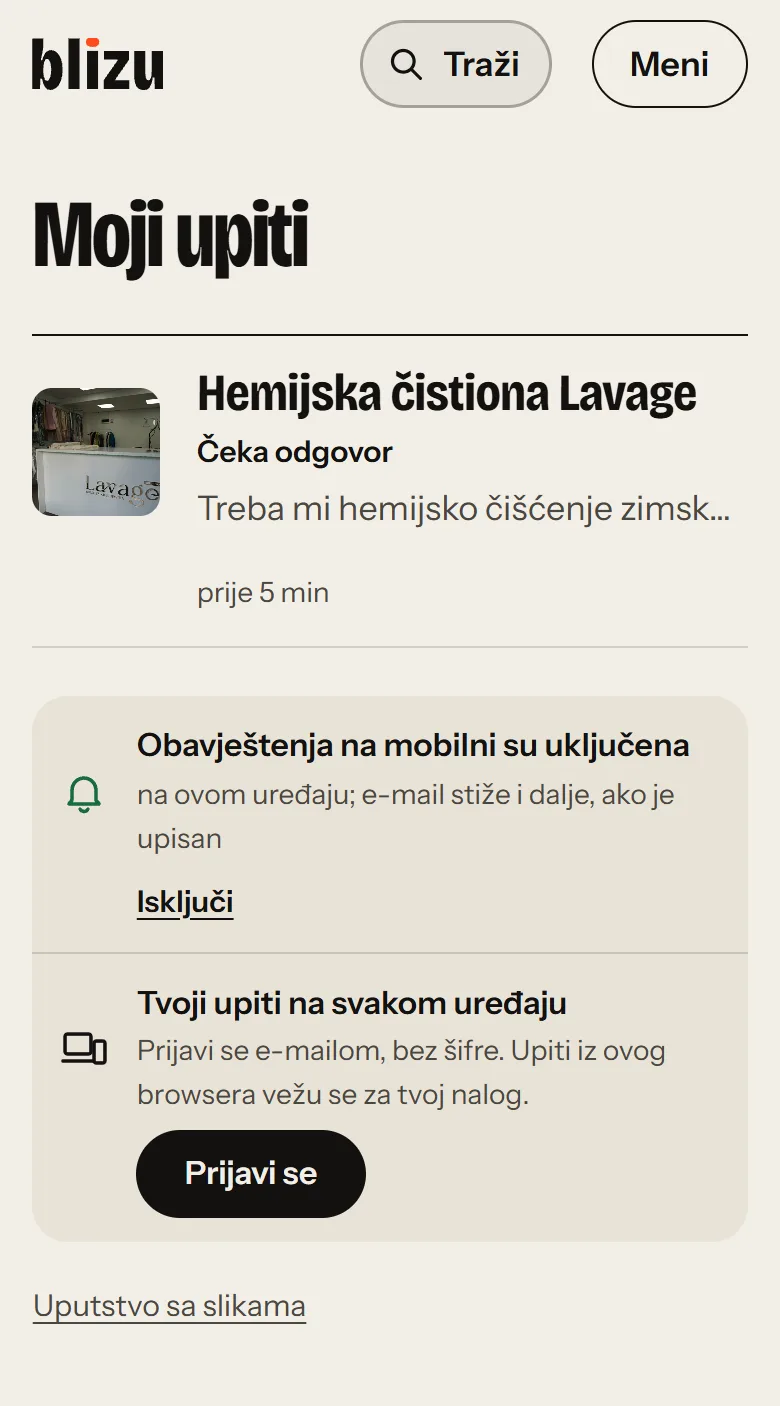
Screenshot of the Bosnian version. This is the card once notifications are on.
You can also add Blizu to your Home Screen when Chrome offers it: an “Add Blizu to your Home Screen” card then appears on “My requests”. You don’t need it for notifications.
Computer
On a computer, notifications work in Chrome, Edge, Firefox and Safari on a Mac.
Step 1: Open “My requests” and click “Turn on”
Open it in the browser you sent the request from, because that browser remembers your requests. For a request sent from your phone, open the link from the email, or sign in on the same page with the email you entered in the request.
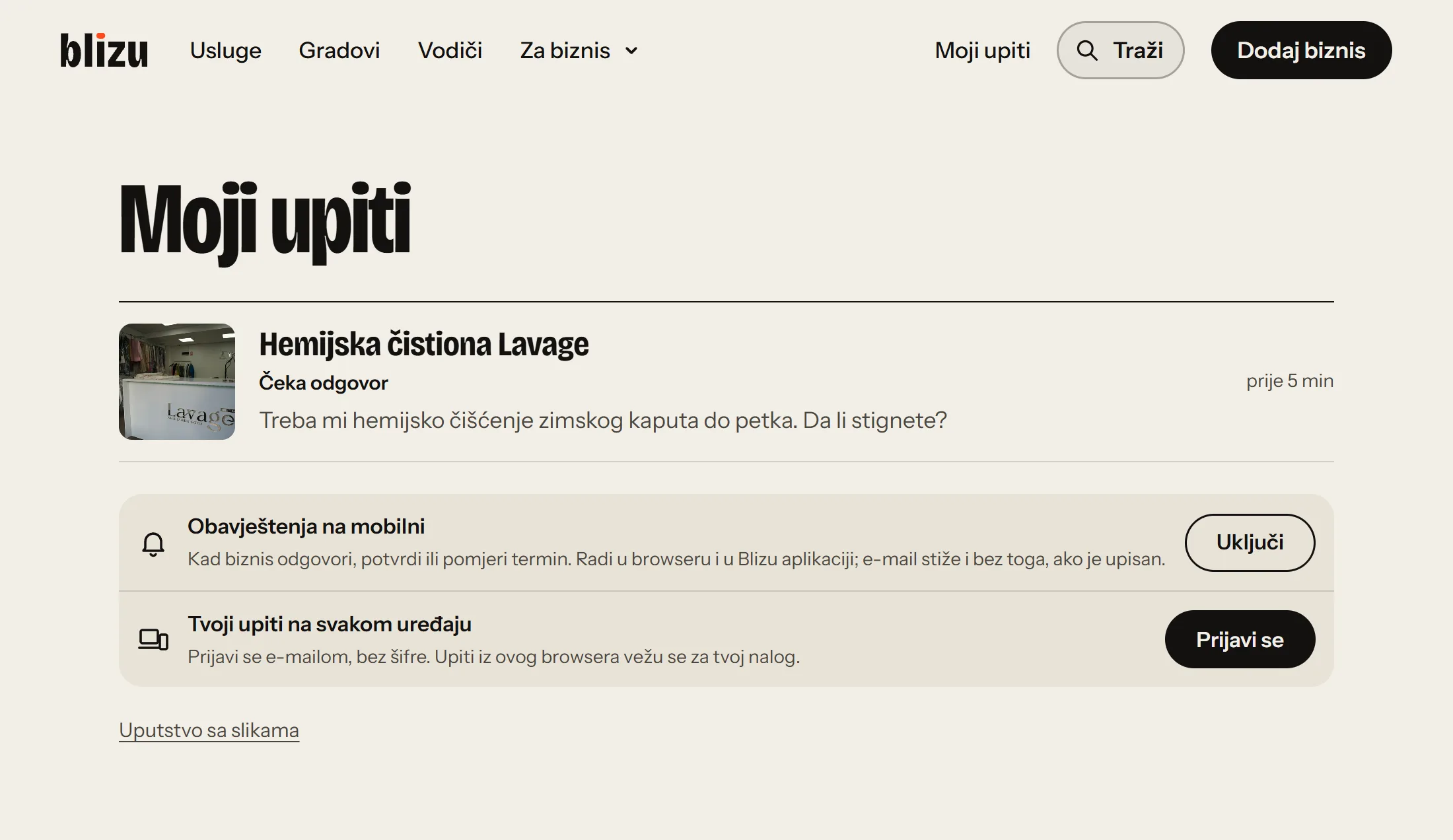
Screenshot of the Bosnian version. Click “Turn on” on the card. Step 2: Click “Allow”
The browser asks in a small window below the address bar. A notification arrives while the browser is running; if it was closed, it arrives when you open it, as long as less than a day has passed.
blizumene.ba wants to
Show notifications
BlockAllowIllustration
A new request comes straight to the business’s phone
You turn notifications on in the Blizu Biznis app, separately on each phone and computer. They arrive for a new request or appointment, a client’s message, a confirmed visit, and a moved or cancelled appointment. The app is in Bosnian for now, so its buttons are quoted below as they appear in the app, with the English meaning.
Thursday, 26 November
 Blizu BiznisExample
Appointment moved: Milica
New time: Friday, 27 November at 12:00. It was: Friday, 27 November at 10:00.
- Blizu BiznisExample
Appointment request: Milica
Dry cleaning, Friday, 27 November at 10:00. Confirm it or suggest another time.
- Blizu BiznisExample
New request: Milica
I need my winter coat dry-cleaned by Friday. Can you do it?
iPhone
On iPhone, the Blizu Biznis app has to be on your Home Screen, added from Safari.
Step 1: Sign in at blizumene.ba/biznis/ in Safari
The bar above the content tells you what to do, and the same instructions are in the “Više” (More) menu.
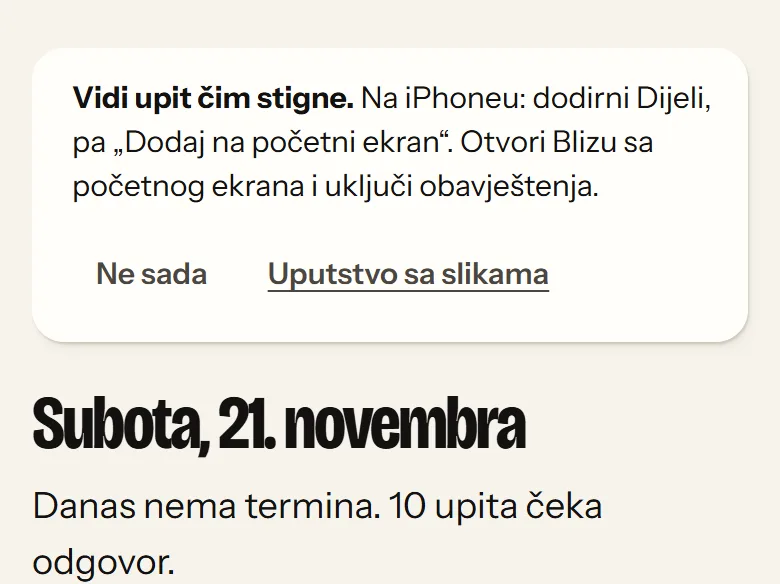
Screenshot of the Bosnian version. Follow the instructions in the bar at the top. Step 2: Tap “Share”, then “Add to Home Screen”
Same as for clients: the square with an arrow (on iOS 26 and later, tap ••• first), then “Add to Home Screen” and “Add”.
Add to Home ScreenIllustration Step 3: Open Blizu Biznis from the icon and sign in again
The app on your Home Screen has its own sign-in, so enter the same email. Then tap “Uključi obavještenja” (Turn on notifications).
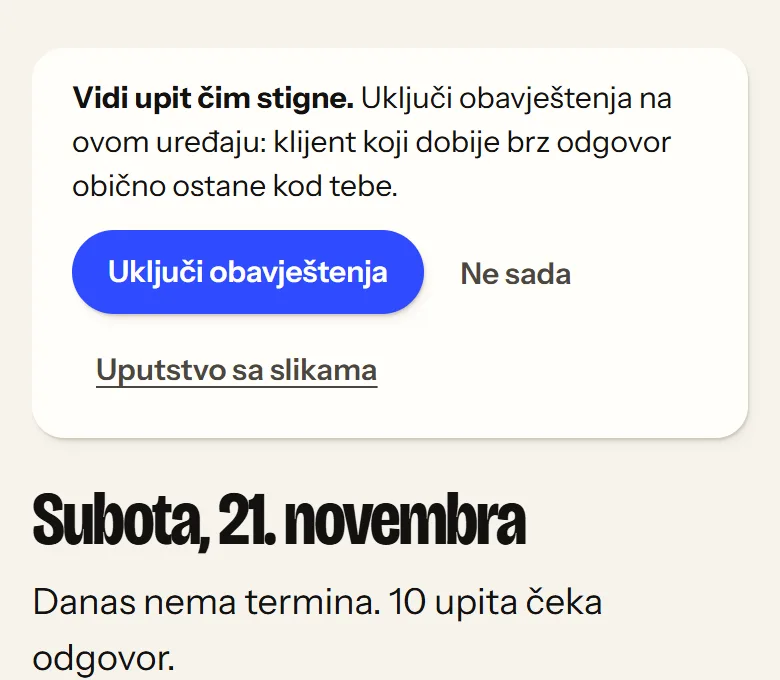
Screenshot of the Bosnian version. Tap “Uključi obavještenja” in the bar. Step 4: Tap “Allow”
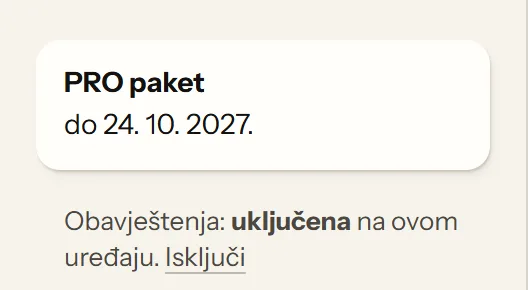
The “Više” menu now says “Obavještenja: uključena na ovom uređaju” (Notifications: on for this device).
“Blizu Biznis” Would Like to Send You Notifications
Don’t AllowAllowIllustration
Android
On Android, notifications work in the browser. These steps are for Chrome.
Step 1: Sign in at blizumene.ba/biznis/ and tap “Uključi obavještenja”
The bar is above the content. If you dismissed it with “Ne sada” (Not now), open the “Više” (More) menu and tap “Uključi obavještenja na ovom uređaju” (Turn on notifications on this device).
Screenshot of the Bosnian version. Tap “Uključi obavještenja” in the bar. Step 2: Tap “Allow”
If the prompt disappears before you tap it, tap “Uključi obavještenja” again.
blizumene.ba wants to send notifications
BlockAllowIllustration
The “Instaliraj aplikaciju” (Install app) button in the “Više” menu adds Blizu Biznis to your Home Screen. You don’t need it for notifications.
Computer
On a computer, notifications work in Chrome, Edge, Firefox and Safari on a Mac.
Step 1: Sign in and click “Uključi obavještenja”
The bar is above the content. If you dismissed it with “Ne sada” (Not now), it comes back after two weeks, and the same button is in the menu on the left: “Uključi obavještenja na ovom uređaju”.
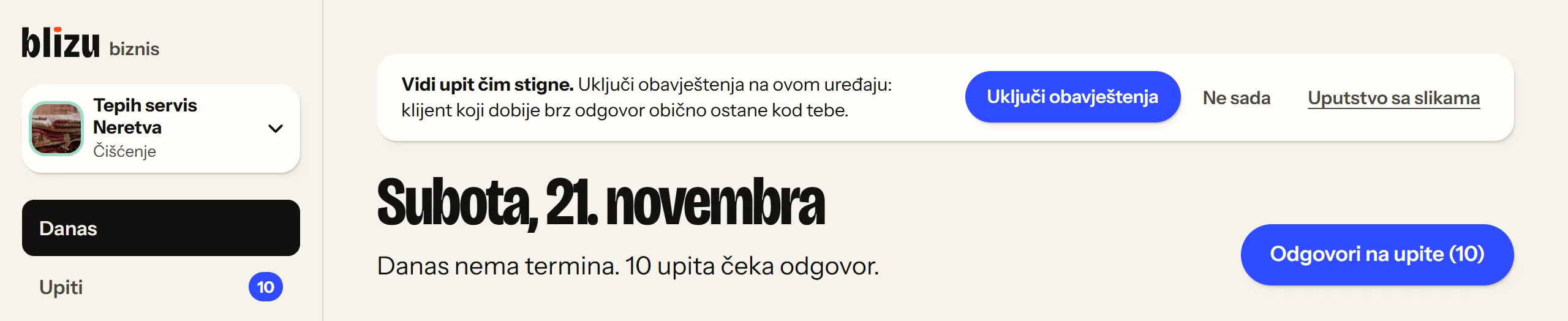
Screenshot of the Bosnian version. Click “Uključi obavještenja” in the bar. Step 2: Click “Allow”
You turn on each computer and browser separately. Turn them on on your phone too, so you see requests when you’re away from your desk.
blizumene.ba wants to
Show notifications
BlockAllowIllustration
When a notification doesn’t arrive
iPhone
- Blizu has to be added from Safari and opened from its icon. Notifications don’t work in a Safari tab.
- Brave and some other iPhone browsers can’t add sites to the Home Screen. Open blizumene.ba in Safari.
- Focus and Do Not Disturb silence notifications. Also check Settings → Notifications → Blizu.
- You need iOS 16.4 or later.
Android
- Chrome must be allowed to send notifications: phone Settings → Apps → Chrome → Notifications.
- Battery saving can delay them. Turn off battery restrictions for Chrome.
Computer
- The browser has to be running. A notification sent while it was closed arrives when you open it, as long as less than a day has passed.
- On Windows, check Settings → System → Notifications and make sure Do not disturb is off. On a Mac: System Settings → Notifications → your browser.
On every device
- Does the card say notifications are blocked? Tap or click the icon to the left of the address and allow notifications for blizumene.ba.
- Notifications cover requests from the browser where you turned them on. For a request sent from somewhere else, open the link from the email in that browser.
Turning them off takes one tap
Client
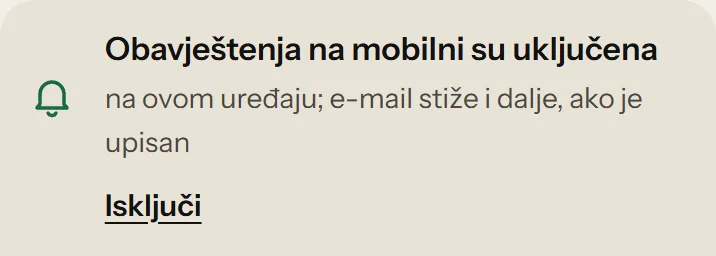
On the “My requests” page, tap “Turn off” on the card. Your device’s subscription address is then deleted from Blizu.
Business
In the app menu, next to “Obavještenja: uključena na ovom uređaju” (Notifications: on for this device), click “Isključi” (Turn off). Your other devices stay on.
Your browser’s service (Google, Apple or Mozilla) passes on only a signal that something new has arrived. Your phone fetches the notification text directly from Blizu. There’s more in the privacy policy.